Webflow CMS updates that will make your life easier

Key takeaways
- In June 2025 Webflow shipped three CMS changes. Filterable Collection Lists inside components, higher nesting limits, and Curated Collection Lists.
- You can now filter a Collection List inside a component instance without unlinking it, so one component can show different CMS content on different pages.
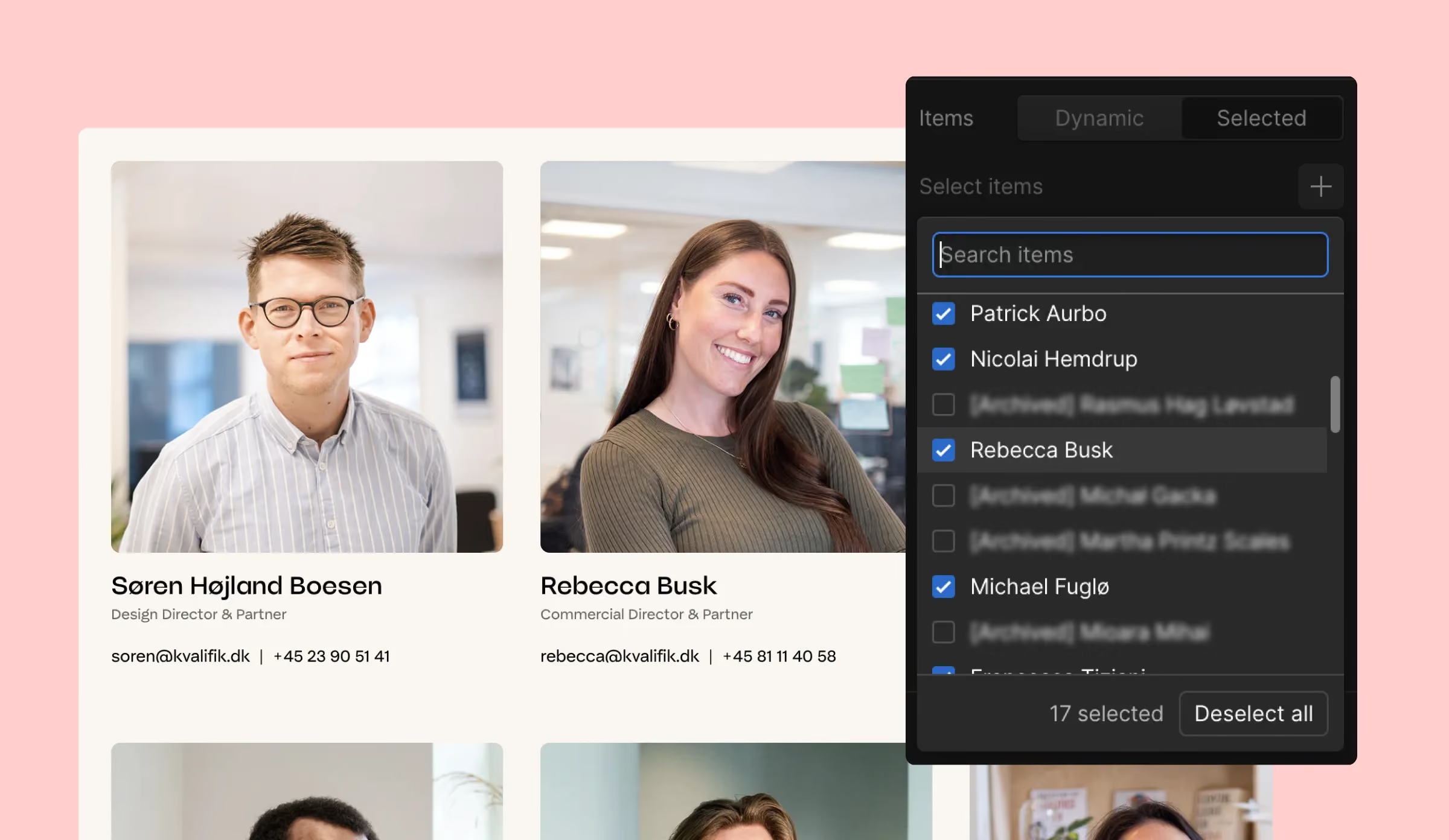
- Curated Collection Lists let you pick exactly which items to show and drag them into order in the Designer, with no sort-order field.
- Nesting limits rose again with the next-gen CMS in April 2026. Every site now supports up to 10 nested lists per page, 100 items per nested list and three levels of nesting (Webflow, 2026).
- Our rule on every build is to make each "featured" section a curated list inside a component in a page slot, so marketers reorder it from Build mode.
- These are marketer features more than designer features. They change what a marketing team can do on its own.
In June 2025, Webflow shipped three CMS changes that matter to anyone working with dynamic content: filterable Collection Lists inside components, higher nesting limits, and Curated Collection Lists. They make it easier to manage and present content the way you want, whether you're a designer, developer, or content manager. Here is what each one does and why we use all three on client sites. Last verified September 2026.
What does it mean that the collection components are reusable?
Components in Webflow let you reuse a fixed layout across multiple pages. For example, a navigation bar or a design where some of the content can be re-editable, like a call to action or testimonial where you change the text and images depending on the page you are on, but keep the same layout.
Before this update, if you wanted to use a Collection list inside a component, you hit a limitation: you couldn’t filter the Collection content. So if you were building, for example, a reusable “Team Member Card”-component and wanted to show only people from a certain department, Webflow didn’t let you add a filter while keeping the component linked. The only way around it was to unlink the component, turning it into a static copy and losing all the benefits of components.
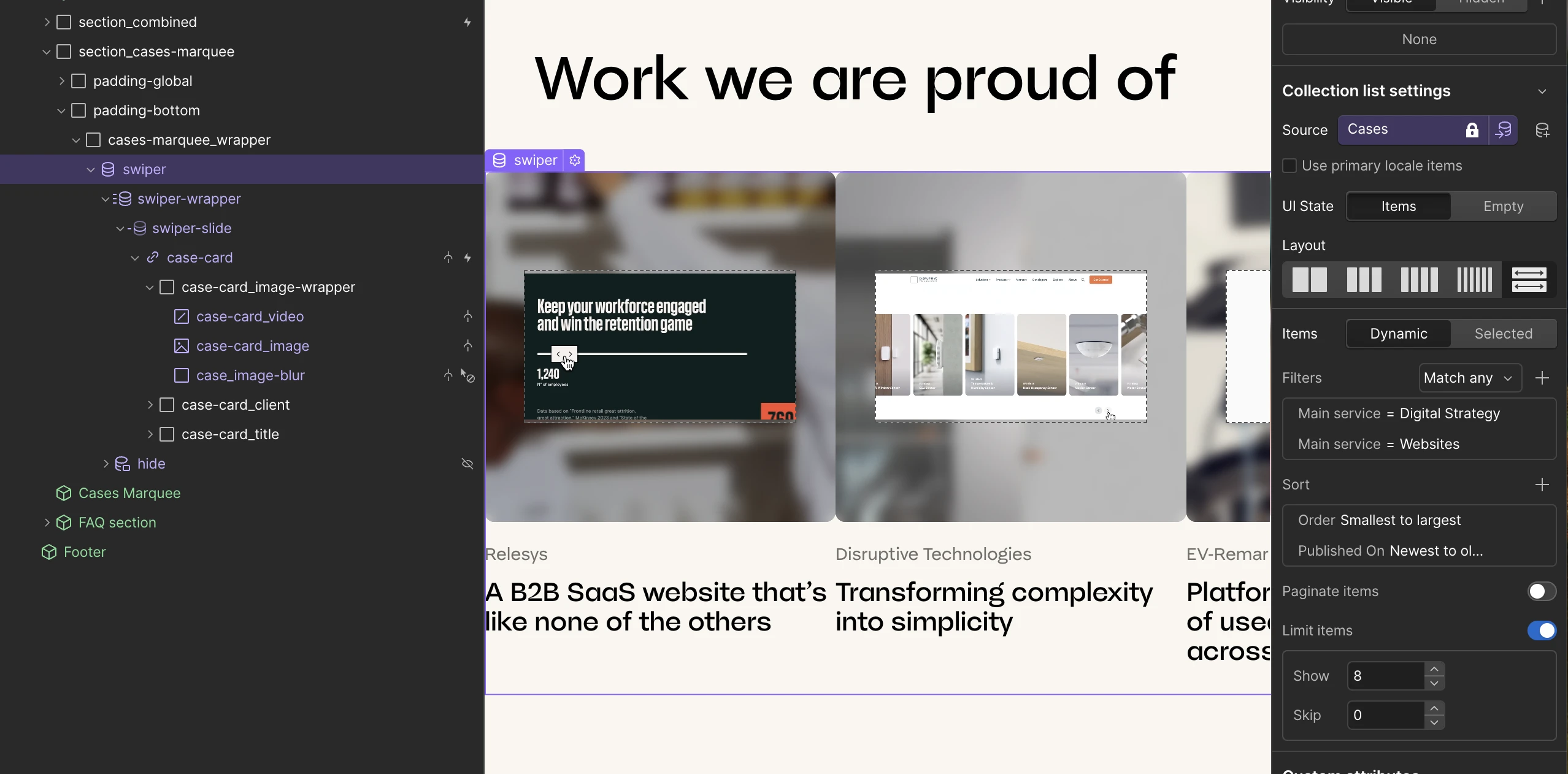
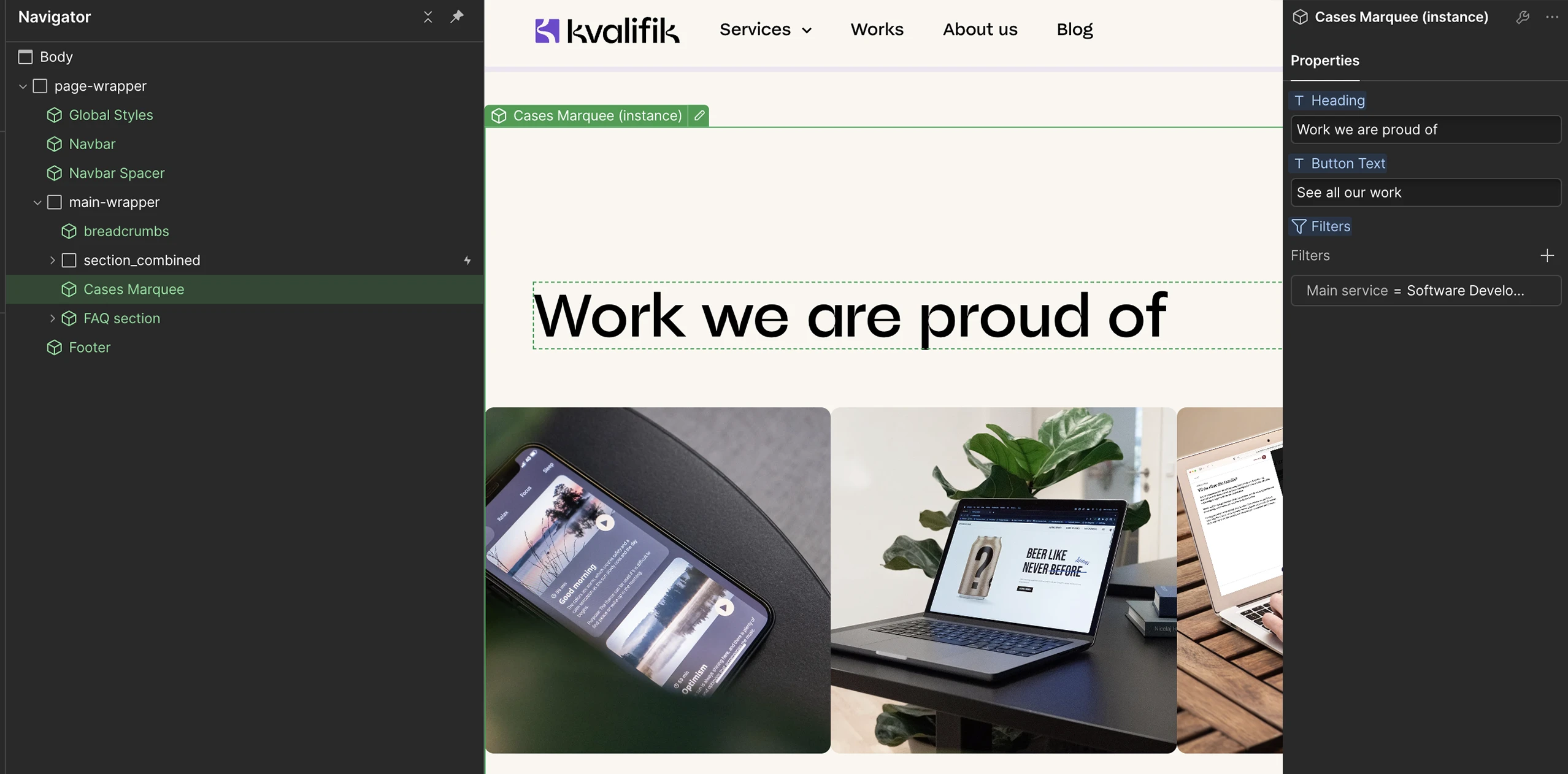
With the new update, you can apply filters directly to the component instance without unlinking it (if that property is connected). This means you can reuse your component in different places, show different CMS content in each one, and still keep it connected to the original design.
What changed with the nested Collection list increase?
Here it gets a bit technical, but what you need to know is that a nested Collection List in Webflow is a Collection List placed inside another Collection List. This allows you to display related CMS items connected through a multi-reference field and is often used for things like filters or tags.
Previously, you could only nest one Collection list inside another, which made it difficult to build more advanced layouts (e.g. with multiple dynamic filters) and required some workarounds. With the June 2025 update, you could add up to two nested Collection Lists per page, with up to 10 items each. Webflow adjusts these limits from time to time, so check the current nesting limits on Webflow University before you plan a layout around them.
Update, April 2026. With the next-gen CMS now on every site, the limits are higher again. A page supports up to 10 nested Collection Lists with up to 100 items each, and you can nest three levels deep, up from one (Webflow, 2026). Most layouts that used to need workarounds no longer do.
Why are Curated Collection Lists so useful?
Before this update, manually ordering CMS items in Webflow required a workaround. If you wanted to reorder something like FAQ questions or team members on your homepage, you had to:
- Create a custom “Sort Order” number field
- Assign each item a value (1, 2, 3…)
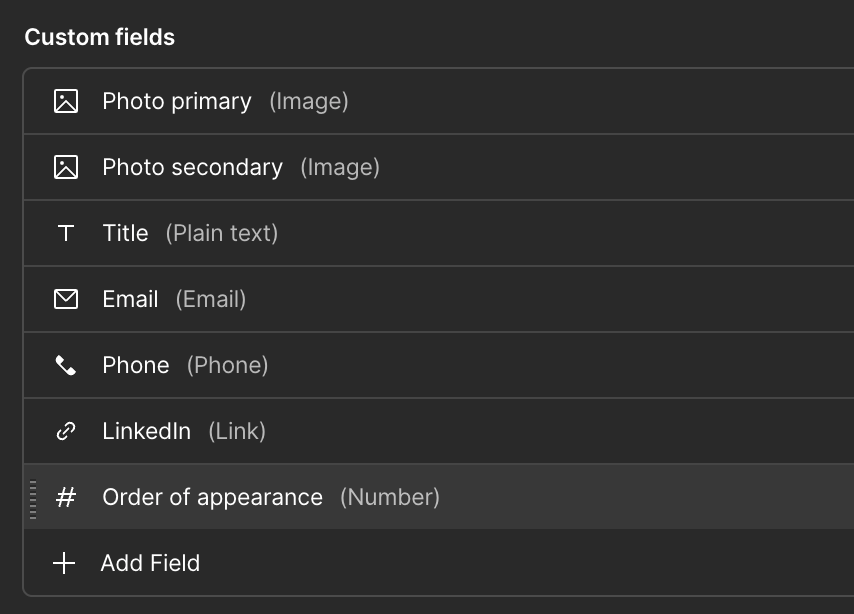
And if you needed to change the order later? That meant going back into the CMS and manually updating every single item.
Fine if you are managing 3 items. A headache if you are managing 50.
For featuring specific content like blog posts, you would also need to add a “Featured” toggle, then filter your list to only show the items where that toggle was checked.
Now there is a much simpler way.
With Curated Collection Lists, you can:
- Select exactly which CMS items you want to display
- Reorder them visually by dragging and dropping
- Do it all directly in the Webflow Designer without extra CMS fields or logic.
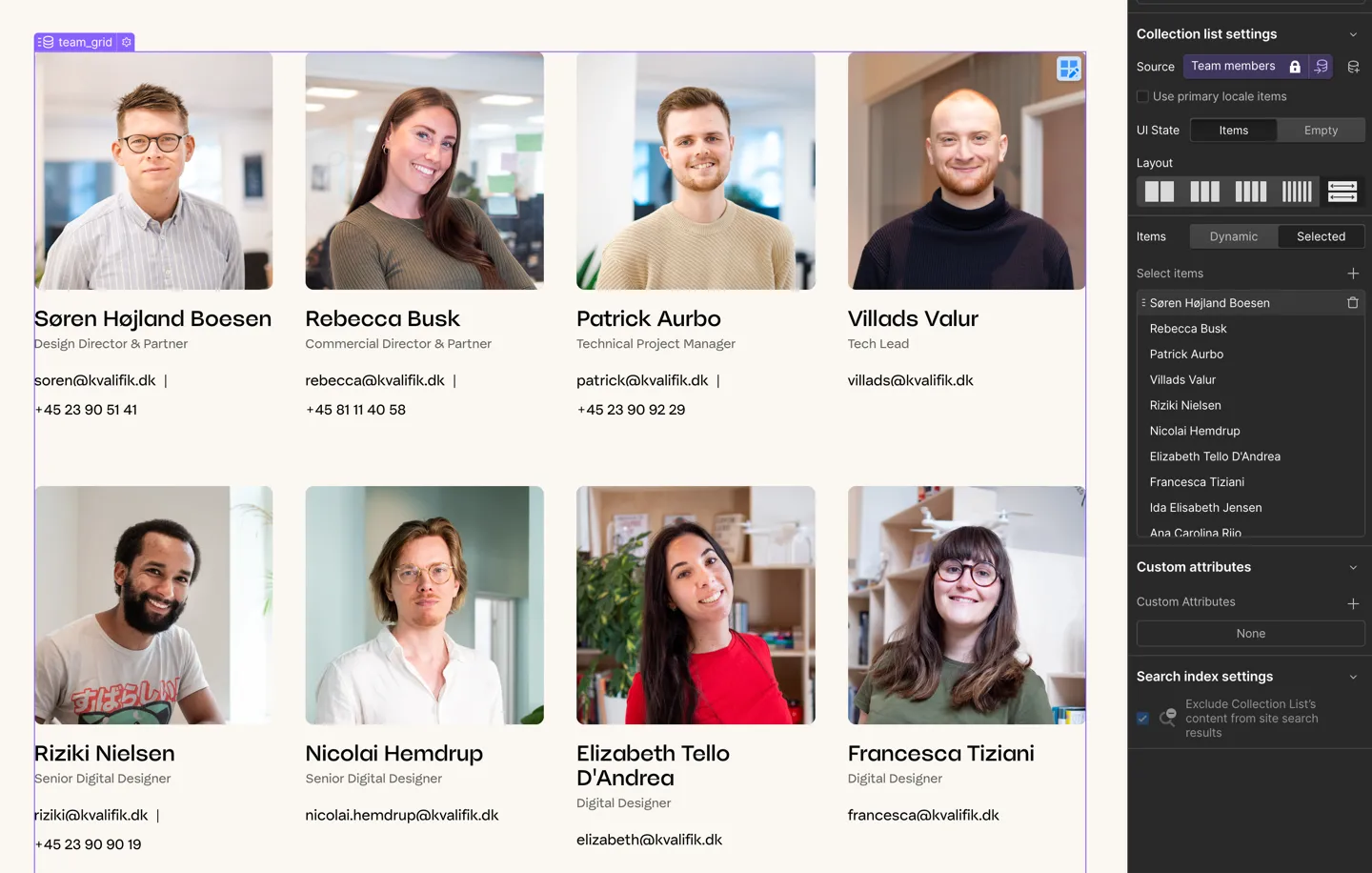
Hint for designers and developers:
To make it possible to edit the order from Build mode you can convert the Collection List into a component and place it inside a page slot.
Our recommendation
Curated lists are a marketer feature more than a designer feature. Our rule on every new build is to make every "featured" section (cases on the front page, selected posts, the team on the about page) a curated list inside a component placed in a page slot. The marketing team then reorders it from Build mode by dragging, and never touches a sort-order field again.
These updates removed some of the limitations that used to need workarounds and made the platform more flexible. Whether you're building complex landing pages, showcasing team members, or highlighting selected case studies, you control what is shown and in what order without touching the CMS backend. Small updates, but they change what a marketing team can do on its own. If you want a site set up this way, see how we approach Webflow development.
Summary
We use all three of these on every site we build now, and the curated list is the one clients notice. Reordering cases on the front page by dragging, without a developer and without a sort field, is the kind of small change that makes a marketing team feel like the site is theirs.
Our advice is to plan for them from the start. Decide which sections are curated, build them as components in page slots, and use the filterable component for anything that repeats across pages with different content. The nesting limits are generous enough now that most layouts no longer need workarounds.
A Content Management System (CMS) is a software application that allows users to create, manage, and modify content on a website without the need for specialized technical knowledge. It provides a user-friendly interface for managing digital content, making it easier for individuals and organizations to maintain their online presence.